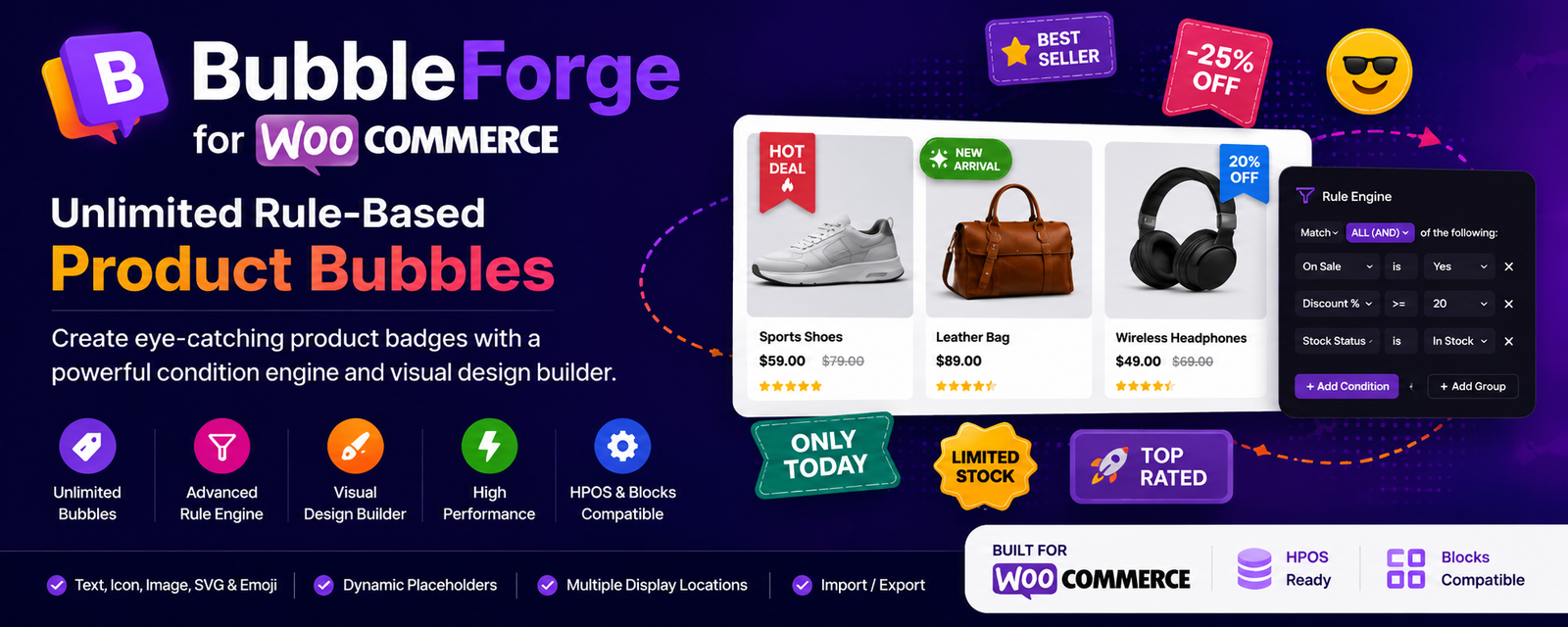
WooCommerce product badges are a useful way to highlight important product information in an online store. Labels such as “New Arrival,” “Best Seller,” and “Limited Stock” can help customers quickly identify specific products while browsing a product catalog.
BubbleForge for WooCommerce is a WordPress plugin that allows store owners to create unlimited product badges using a visual design builder and a flexible rule engine.
Instead of relying only on the standard WooCommerce sale badge, store owners can create customized product bubbles and control when and where they appear.
What Is BubbleForge for WooCommerce?
BubbleForge for WooCommerce is a lightweight plugin designed to help WooCommerce store owners create and manage custom product badges.
It supports multiple badge formats, dynamic product information, advanced display conditions, and customizable designs. Store owners can configure badges for products, categories, stock conditions, discounts, and other supported rules.
You can explore the plugin on the official WordPress.org directory:
Download BubbleForge for WooCommerce
Key Features of BubbleForge for WooCommerce
1. Create Different Types of Product Badges
BubbleForge supports multiple badge types, giving store owners flexibility in how product information is displayed.
Supported badge types include:
- Text badges
- Emoji badges
- Dashicons
- Image badges
- Inline SVG badges
These options allow store owners to choose different visual styles for their product labels.
2. Display Badges Using Advanced Rules
One of the main features of BubbleForge is its condition-based rule engine.
You can combine multiple conditions using AND/OR logic to determine which products should display a particular badge.
Supported conditions include:
- Products, categories, tags, attributes, brands, and product types
- Sale status, discount percentage, price, and featured products
- Stock status and stock quantity
- Best sellers, top-rated products, and newly added products
- User roles and customer country
- Device-based conditions and date scheduling
This makes it possible to configure different badges for different products and shopping situations.
3. Use Dynamic Product Information
BubbleForge supports dynamic placeholders that can display product-related information inside badges.
Available placeholders include:
{price}— Product price{regular_price}— Regular price{sale_price}— Sale price{discount_percent}— Discount percentage{stock}— Stock information{sku}— Product SKU{title}— Product title
These placeholders allow badge content to use information associated with the relevant product.
4. Customize Badge Design
The visual design builder provides options to customize how product badges look.
Available customization options include:
- Colors and typography
- Rectangle, circle, ribbon, flag, and star shapes
- Animations
- Badge positioning with offsets
- Responsive visibility for different devices
These settings help store owners configure badge designs according to their store’s presentation requirements.
5. Choose Where Product Badges Appear
BubbleForge supports multiple WooCommerce product display locations.
Badges can be configured for:
- Shop and product archive pages
- Product categories and tags
- Search results
- Single product pages
- Related products
- Upsells and cross-sells
This provides flexibility when deciding where specific product labels should appear throughout a WooCommerce store.
6. Performance-Focused Implementation
BubbleForge includes conditional asset loading and a cached active-bubble set.
These features are part of the plugin’s performance-focused implementation.
7. WooCommerce Compatibility
According to its WordPress.org listing, BubbleForge supports WooCommerce High-Performance Order Storage (HPOS) and Cart/Checkout blocks.
The plugin also supports importing and exporting bubbles as JSON, making it possible to move bubble configurations between websites.
How to Get Started with BubbleForge for WooCommerce
Getting started involves a few basic steps.
Step 1: Install the plugin
Visit the BubbleForge for WooCommerce plugin page and install the plugin through your WordPress dashboard or upload the plugin folder to your website.
Step 2: Activate the plugin
Activate BubbleForge through the WordPress Plugins menu. Make sure WooCommerce is installed and active.
Step 3: Create your first product badge
Open Product Bubbles → Add New in the WordPress dashboard.
Step 4: Configure the badge
Choose your badge content, design settings, and display conditions according to your requirements.
Step 5: Configure the display location
Select the supported product locations where the badge should appear and configure the relevant rules.
Frequently Asked Questions
Can I create multiple product badges?
Yes. BubbleForge allows you to create unlimited product badges.
Can I customize the appearance of product badges?
Yes. You can customize colors, typography, shapes, animations, positioning, and responsive device visibility.
Can badges display product prices and stock information?
Yes. The plugin supports dynamic placeholders for product prices, sale prices, discount percentages, stock information, SKU, and product title.
Can I display badges only for selected products or categories?
Yes. The rule engine supports product, category, tag, attribute, brand, and product-type conditions, along with other supported conditions.
Can I hide the default WooCommerce sale badge?
Yes. The plugin provides an optional setting to hide the default WooCommerce “Sale!” flash.
Can I add custom conditions?
Yes. Developers can use the bbfgw_evaluate_condition filter to implement custom condition types.
Where can I download BubbleForge for WooCommerce?
You can find the plugin and its official documentation details on the WordPress.org plugin page.
Conclusion
BubbleForge for WooCommerce provides a flexible way to create custom product badges using different content formats, dynamic placeholders, configurable rules, and visual design options.
Whether you want to highlight discounted products, identify new arrivals, display stock-related labels, or customize product badges across different WooCommerce pages, BubbleForge offers a centralized way to configure these elements.
Explore BubbleForge for WooCommerce:
https://wordpress.org/plugins/bubbleforge-for-woocommerce/
Leave a Reply